
01 / 0710 min readUpdated November 9, 2026
How to DJ in your browser: your first mix in 10 minutes
VibeField DJ is a free DJ app that runs in your browser. There is nothing to install and no account to create, and your music never leaves your computer. Open dj.vibefieldlabs.com in Chrome, Edge or Brave, and in ten minutes you can have two tracks running in time and blended into each other.
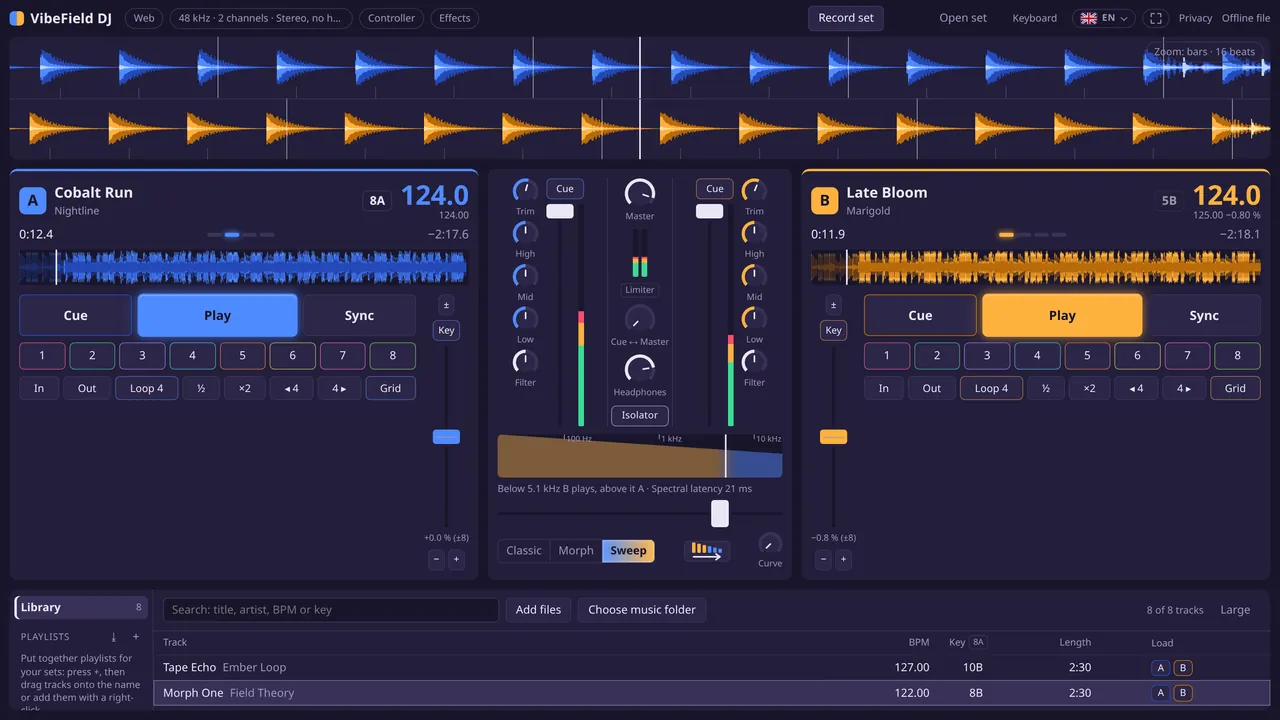
01Start the app and add your music
Browsers only allow sound after a click, so the first thing you see is a Start audio button. After that, the library at the bottom is waiting for music. Nothing is uploaded: the app reads the files straight from your disk.
MP3, FLAC, WAV, Ogg and Opus work everywhere; m4a works in regular Chrome.
- Click Start audio.
- Click Choose music folder and pick the folder where your tracks live. VibeField remembers it, so next time a single click opens it again. (If your browser has no folder picker, the button is called Add folder.)
- Or click Add files to pick single tracks.
- Or drag files from your file manager straight onto a deck. They land in the library and the first one goes into that deck right away.
02Let the analysis run once
Every new track is analyzed for tempo (BPM), beat grid, loudness, key and waveform. This happens only once per track: the result is stored in your browser, so the next time the track is instantly ready. The analysis uses all your processor cores, and only half of them while a deck is playing, so it never gets in the way of a set.
If a grid looks wrong, the Grid button on the deck opens a small editor: nudge the grid earlier or later, set the beat where the kick is with Beat here, halve or double the BPM, or tap the tempo.
03Load two tracks and play
Each row in the library has A and B buttons to load it into a deck; you can also drag a track onto a deck. A deck that is playing will not take a new track, so stop it first. Start the first track, then get the second one ready. The Cue button sets a cue point and jumps back to it, so you can start the next track from exactly the right beat.
Pressing Sync on the incoming deck matches its tempo and beat to the other one. Sync relies on the beat grid from the analysis, which is why a correct grid matters.
- Q/P
- Play deck A / B
- W/O
- Cue deck A / B
- E/I
- Sync deck A / B
- ↑ ↓
- Move through the library
- Shift+Enter/Enter
- Load the selected track into A / B
- ← →
- Crossfader
- 1–4/7–0
- Hot cues 1–4 on deck A / B
04Blend with the crossfader and swap the bass
The crossfader sits under the mixer. Keep it in Classic mode for now. Two kick drums and two bass lines at full volume turn to mud, so DJs swap the bass: one track gives up its low end while the other takes it over.
If you want the bass to disappear completely, switch on Isolator in the mixer: turning a band fully left then removes it entirely instead of just turning it down.
- With deck A playing, turn the Low knob of deck B fully down and start B in sync.
- Move the crossfader toward the middle, or bring up B with its channel fader. You now hear B’s melody and A’s bass.
- On the first beat of a new phrase, turn A’s Low down and B’s Low up at the same time.
- Over the next bars, move the crossfader all the way to B. Done: that was a mix.
05Prepare the next track in your headphones
Each channel has a Cue button that sends it to your headphones. The Cue ↔ Master knob blends between what you are preparing and what the room hears; the Headphones knob sets the volume.
Headphones need their own output. Click the audio status button in the top bar. On an interface with four or more channels, pick a channel pair for master and headphones (Test beeps on the chosen pair). With two separate devices, such as an interface and a USB headset, use Headphones on a second device; VibeField continuously compensates for the clock drift between the two cards. On a plain stereo output there is an emergency split: master on the left, headphones on the right, both in mono.
Frequently asked
Is VibeField DJ really free, without an account?
Yes. Open the page and start mixing. There is no sign-up, and your music never leaves your computer.
Which browser should I use?
Chrome, Edge or Brave. Firefox and Safari can play music too, but they cannot use MIDI controllers.
Can I DJ without a controller?
Yes. Everything works with mouse and keyboard. The Keyboard button in the top bar lists all shortcuts.