
06 / 077 min readUpdated November 9, 2026
Record your DJ set, fix it afterwards, export as WAV
VibeField DJ does not record the sound of your set. It records every action you take, at the exact sample. From that log it renders a lossless WAV that is identical to what you played. Because the set is made of actions, you can also edit it afterwards: move a transition, delete a slip, redraw a fader move.
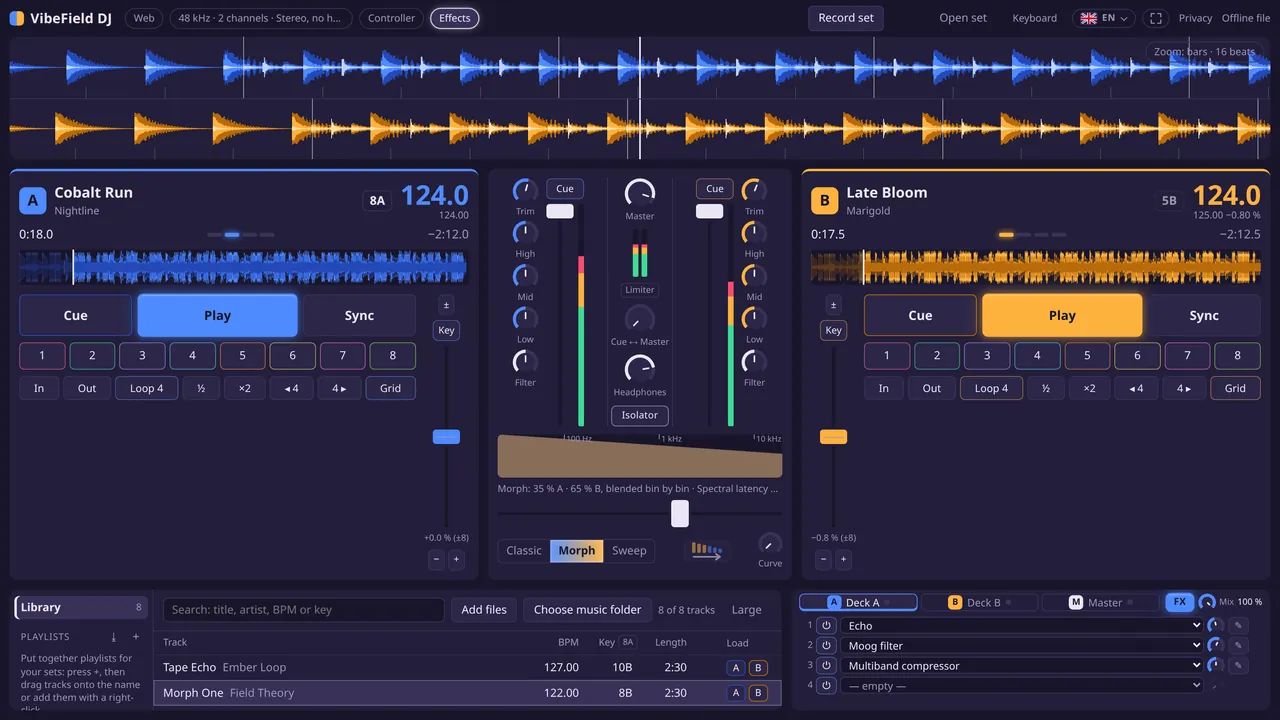
01Record a set
Rendering runs offline, so a dropout during the live set does not end up in the WAV. Everything is included: decks, mixer, crossfader modes and effects.
- Click Record set in the top bar and play as usual.
- Click Stop recording when you are done. A message tells you how long the set was and how many actions it contains.
- Click Render as WAV. A 24-bit WAV is written, identical to what played live.
- Click Save set to keep the set file for later editing. It is small, because it contains actions, not audio.
02Open the set editor
Click Edit after a recording, or load a saved set with Open set first. The editor shows the master waveform, both decks and lanes for faders and knobs. The first time, it replays the session before the set so the state at the start is exact; after that, previews start immediately.
Drag in the ruler or waveform to select a range. The Affects: checkboxes choose whether a change applies to Mixer actions (crossfader, faders, EQs, filters, modes), to Decks actions (play, cue, hot cues, loops, sync, pitch, scratch), or both.
03Move transitions and delete mistakes
Was a transition a beat late? Select the range around it and move it by beats or bars. The selection label shows its length in beats at the current BPM, so you know exactly what you are moving. Hit a hot cue by accident? Select it and press Del. Use as start/end trims the set to the selection, which is handy for cutting the warm-up off.
- ←/→
- Move the selection 1 beat earlier / later
- Shift+←/→
- Move the selection 1 bar earlier / later
- Del
- Delete the actions in the range
- Space
- Preview from the playhead
- Ctrl+Z/Ctrl+Shift+Z
- Undo / redo
- Ctrl+S
- Save the edited set
04Redraw fader moves
Every fader and knob movement is a line of points in its lane. Drag points to reshape a move, double-click to add a new point, and press Del to remove selected ones. A rushed crossfade becomes a smooth one over eight bars, and a jerky EQ swap lands cleanly on the beat.
05Render again and share
When it sounds right, click Render as WAV in the editor to get the edited set as a 24-bit WAV, and Save to keep the edited set file. The WAV is what you share: upload it to your mix platform of choice or send it to a friend.
The set file only references your tracks. To render or edit it, the same tracks need to be in the library. If one is missing, VibeField names it and asks you to open the music folder or add the file.
Frequently asked
Does recording a set use a lot of disk space?
No. The set file holds your actions, not audio. The full-size WAV is only created when you render it.
What format is the exported audio?
A 24-bit WAV at the sample rate of the session, rendered losslessly from the recording.
Can I fix a transition after the gig?
Yes. Open the set in the set editor, select the transition, move it by beats or bars, preview it and render the WAV again.